
Tempo presets
You can save tempo presets directly on the device. There are 50 presets, each preset containing both the tempo and the time signature.
Saving and managing tempo presets
To save and delete presets, find the 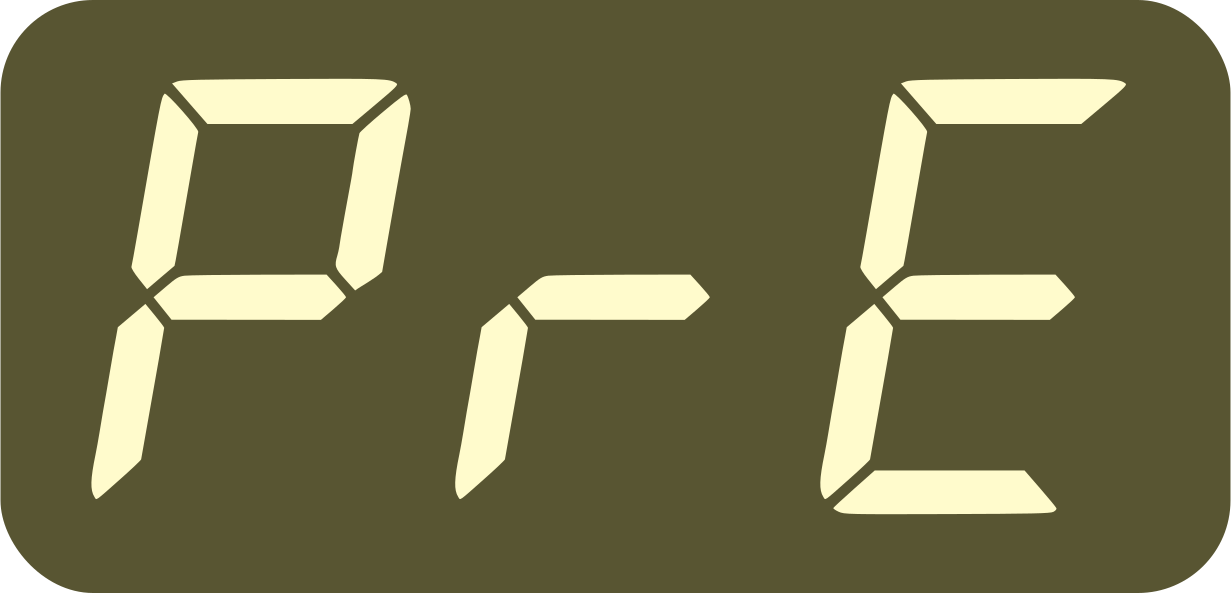 entry in the advanced
settings list:
entry in the advanced
settings list:
 →
→ 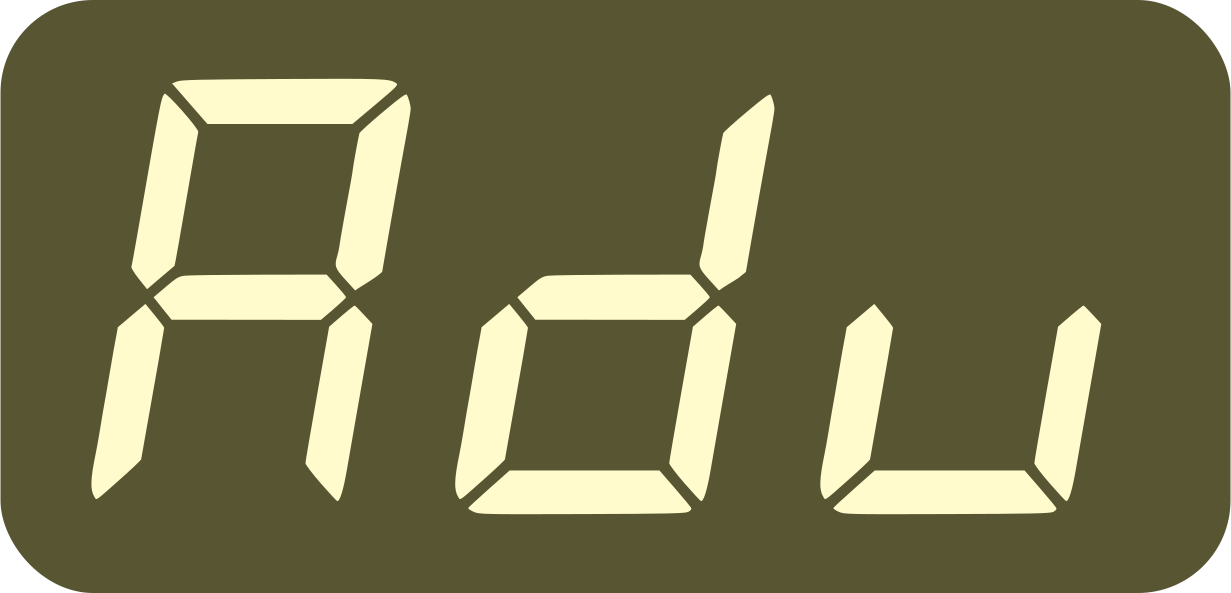 →
→
You will be presented with a list from 1 to X, with X the first available preset (X-1 being the last saved preset).
That preset X will be written as E.xx (E for empty), for example
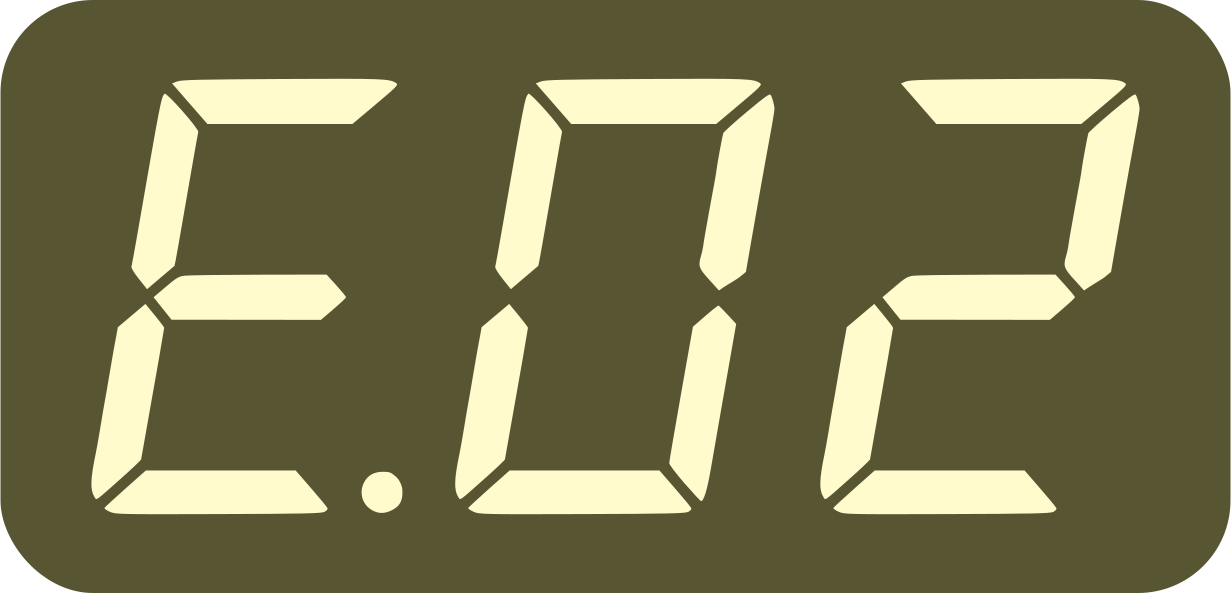 if you have one preset saved already (X=2).
To save the current tempo and time signature as a preset, select the preset you want to save and hold down

The display will show
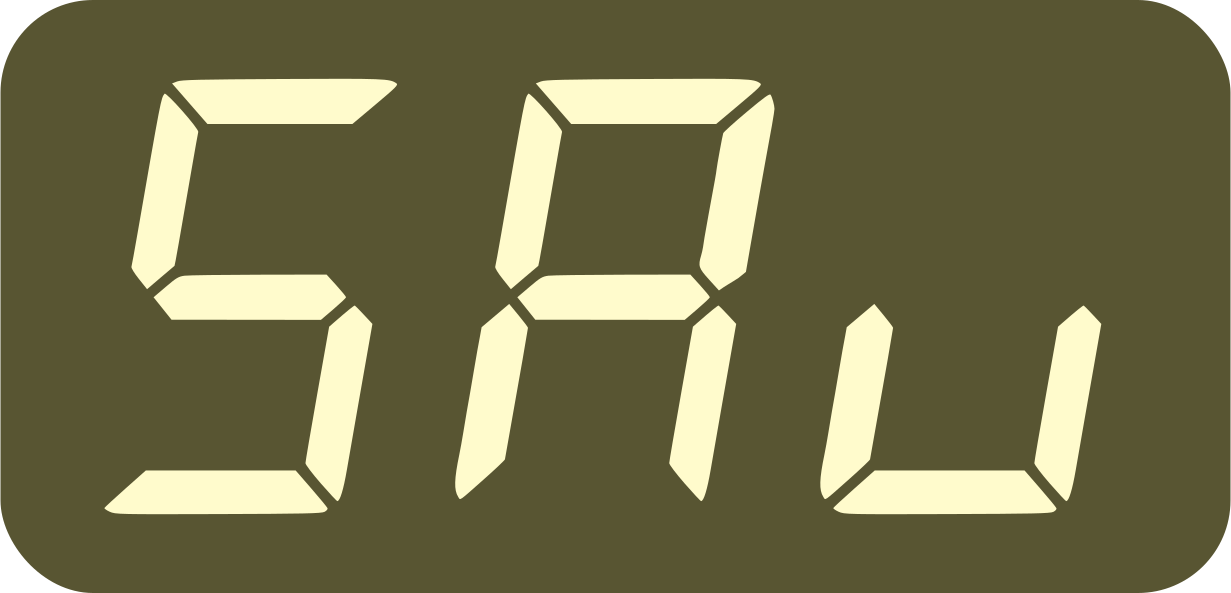 (SAved) when the preset is saved
You can only delete the last preset that was saved (the one just before E.xx).
To delete it, select it and then hold down both
 and
and
The display will show
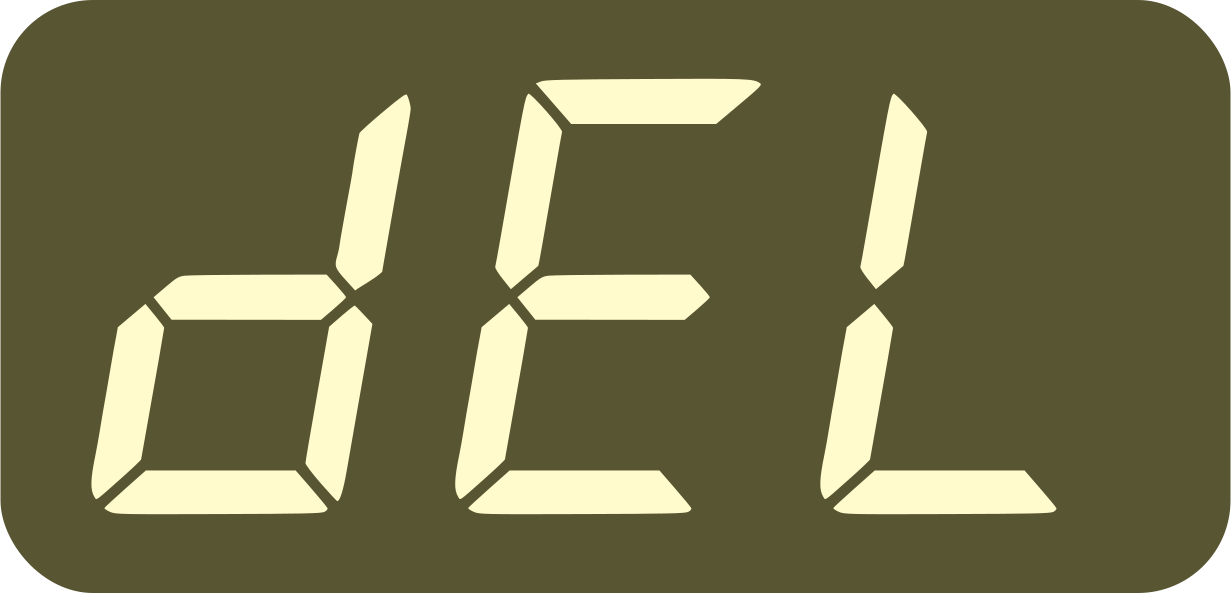 (dELeted) when the preset is
deleted
(dELeted) when the preset is
deleted
To exit the list, either press to go back to the (advanced)
settings list, or press to exit the settings and go back to
the main display showing the tempo.
Applying tempo presets
The last applied preset is always saved in the device.
To see which preset is currently applied, make sure you exit the
settings, then hold and rotate  once. The
display will show P.xx, for example
once. The
display will show P.xx, for example 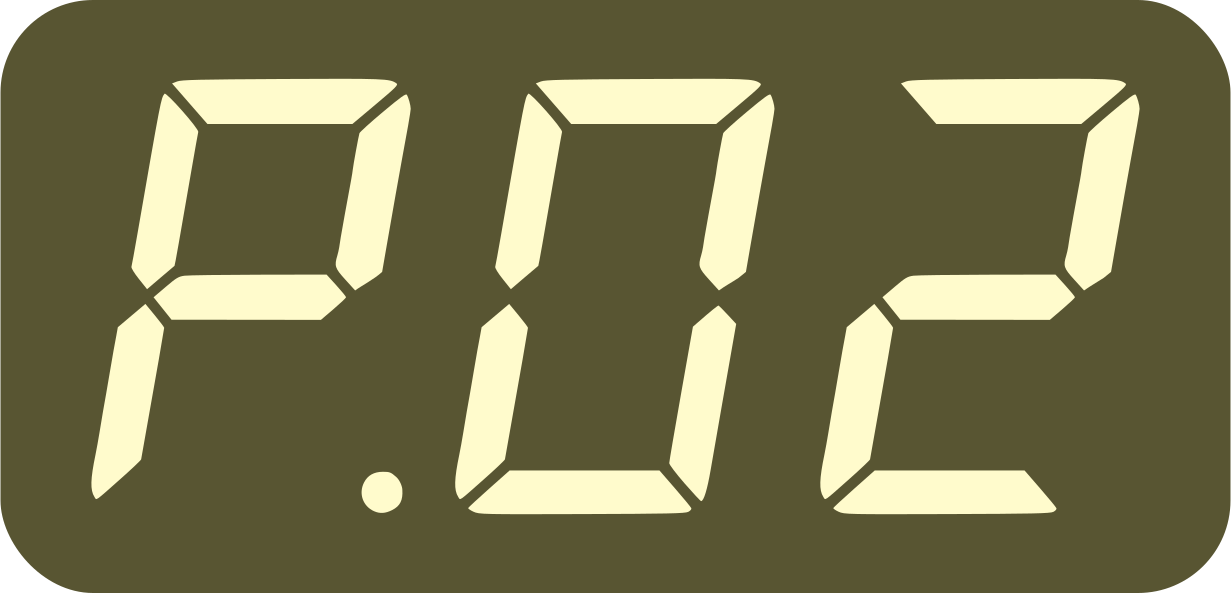 , until you release the
TAP button.
, until you release the
TAP button.
No new preset is applied at this point, but if you keep rotating the knob, the next or previous preset will be applied (and the display will also show you).
When one of the play buttons  or
or  is lighting
yellow (i.e. a sequencer is playing), the preset will only be
applied at the end of the bar. The main tempo display will have
blinking dots to indicate that a preset is pending.
is lighting
yellow (i.e. a sequencer is playing), the preset will only be
applied at the end of the bar. The main tempo display will have
blinking dots to indicate that a preset is pending.
When the tempo is in locked mode, the preset will
only be loaded by not applied until is pressed down.
Note that you can also apply presets using pedals or using MIDI commands.