
Update the Nome Firmware
Why update
New firmware versions are regularly released, and for now they are all free.
If you have never updated, then you are probably missing out on a whole lot of new features and bug fixes, and the settings shown in this manual probably do not match the ones on your device.
Feel free to have a look at the Nome Firmware Changelog for more details.
How to update
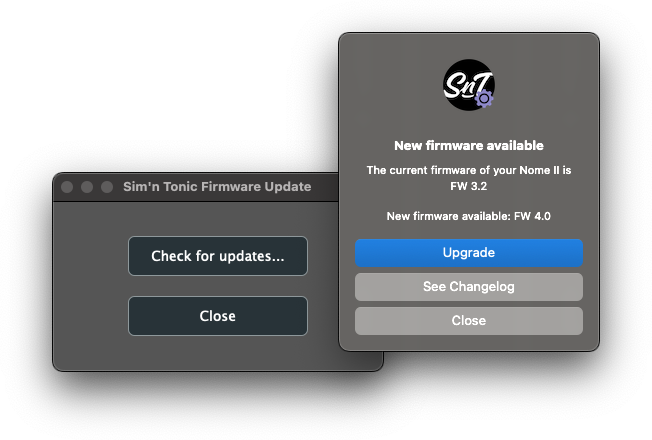
To update your Nome:
Download the Firmware Update tool
Launch it and click “Check for updates…”
How to load a custom, beta, or alpha firmware
The tool updates your Nome to the most recent firmware by default.
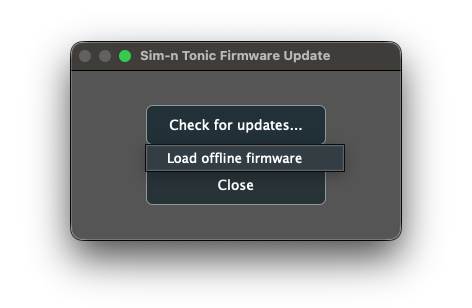
If you want to load a different firmware:
Download a specific *.fw firmware file (do not rename the file)
Launch the tool
Right click “Check for updates…” and load the chosen *.fw file
You can go back at any time to the newest firmware by left clicking “Check for updates…” again.
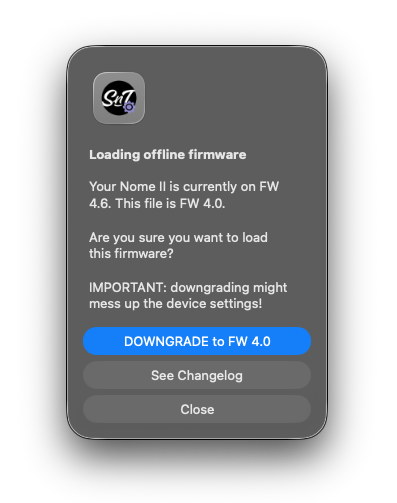
Important: switching to any firmware will not damage your device in any way, and it will be fully functional.
But downgrading might mess up your device settings (depending on which version). Upgrading back to the same version after a downgrade might also mess up your device settings.
(upgrading to a newer version after that will preserve the settings as normal)
In all those cases, make sure to remember what your settings were so you can set them back.
Troubleshooting
There is no way to “brick” the device (make it unusable), so feel free to unplug and restart the update if there is any issue. The update process should take no more than 15 to 20 seconds.
If your device is not detected, please check the USB cable and check in your OS if the device is recognized (Device Manager on Windows, Audio MIDI Setup on Mac). Please try disconnecting and reconnecting the device as well.
If none of this helps, you can force the “update mode” of the device by doing as follows:
Unplug the USB cable
Hold the TAP and the two play buttons down
Replug the USB cable while holding the 3 buttons
Wait 4 seconds (the screen will stay blank during that time)
After those 4 seconds, the device will start in update mode:
it will show “rdY” if it is connected successfully
(if not, check your USB connection/cable and check your OS)
Now, try running the update from the software tool again.