
Extra functionalities
Syncing multiple Nomes together
To get more outputs you can sync multiple Nomes together. This sync is one-way only: one Nome will be the master and all the others will follow. The tempo and time signature numerator can only be changed on the master, while the time signature denominator can be set individually on each follower Nome.
There is no real limit regarding how many Nomes you can sync (in fact, we tested it with 36!), and this works with any combination of Nome I and Nome II devices.
To set it up, do the following:
On the master Nome:
Select the
 →
→ 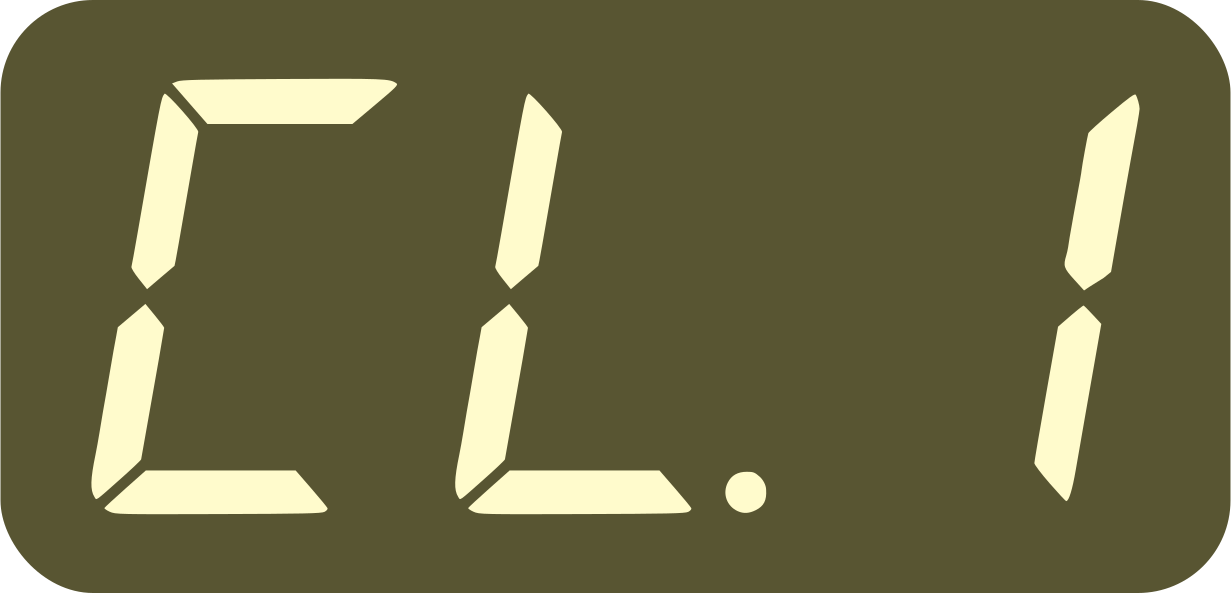 setting, and set it to 59
Press
 for 1 second
The value will change from 59 to
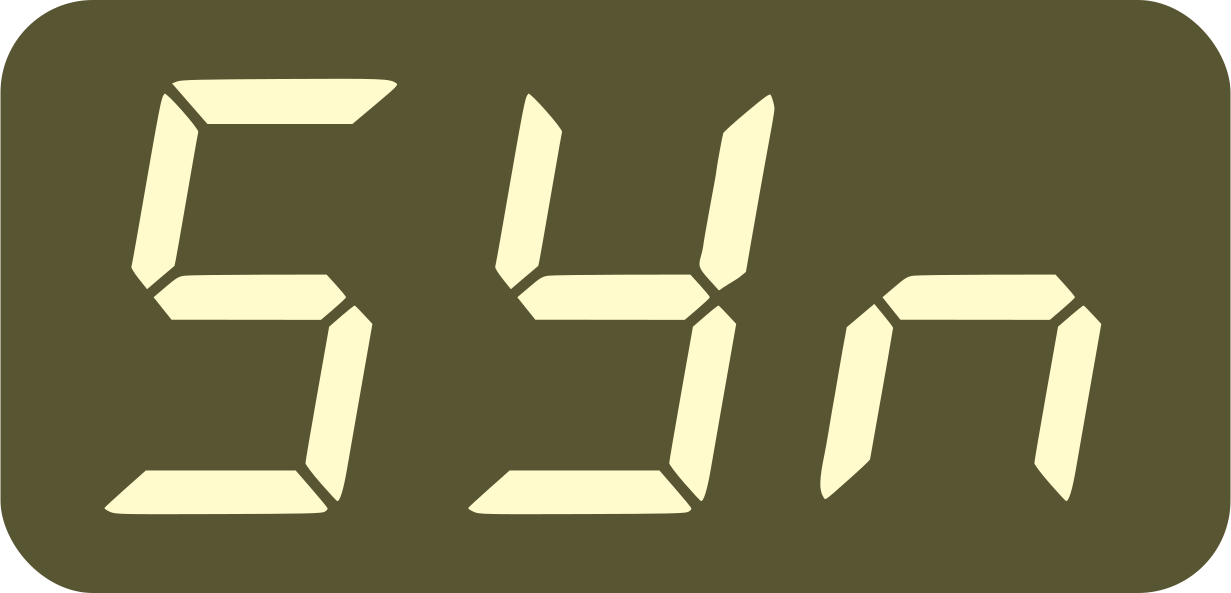
On every follower Nome:
Select the
→ 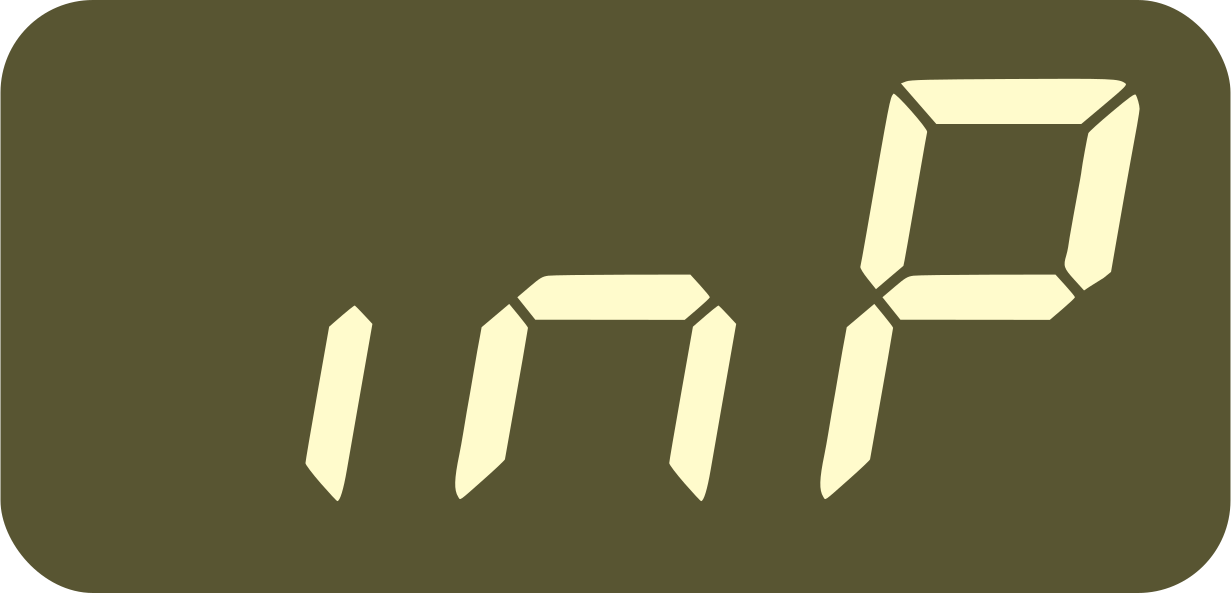 setting, and set it to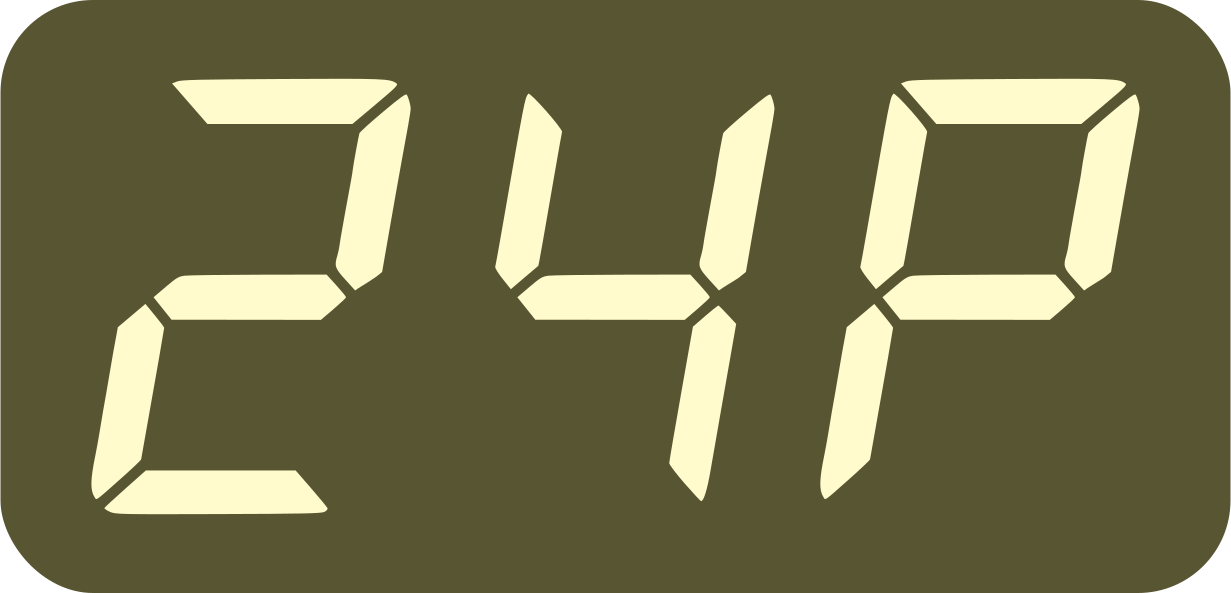
Press
for 1 secondThe value will change from
to
Now connect a 6.35mm jack cable from the AUDIO plug of the master Nome to the INPUT plug of every follower Nome (use Y splitter cables if syncing more than 2 Nomes).
For best results, set the audio output switch  to line out (
 ) on the master Nome.
To get a follower Nome to play automatically when the master Nome is
also playing, see the section
above about the
→ 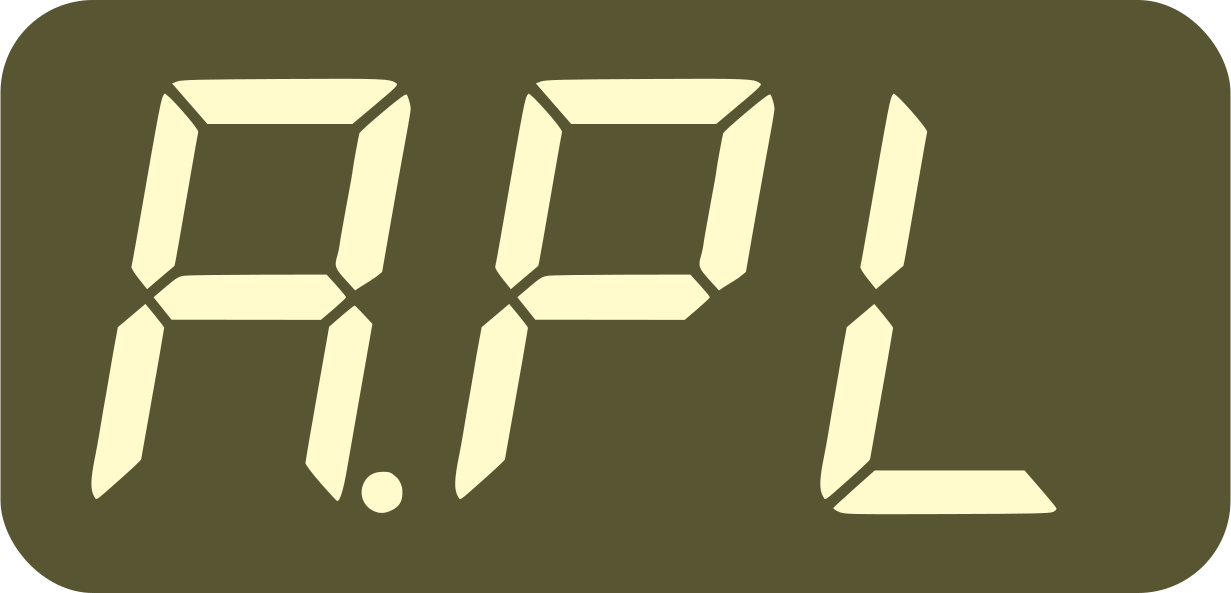 setting.
Tempo decimals
You can set the tempo down to the 100th decimal on the Nome, i.e. from x.00 to x.99.
The decimals are also:
automatically set when tapping a tempo
saved in the tempo presets
supported by U-SYNC 1.4 and newer
modifiable using MIDI CC Commands
On the device, press once to open the tempo decimal page.
The display will then show a dot and the decimal part of the BPM
“.xx”. For example if the current BPM shown is 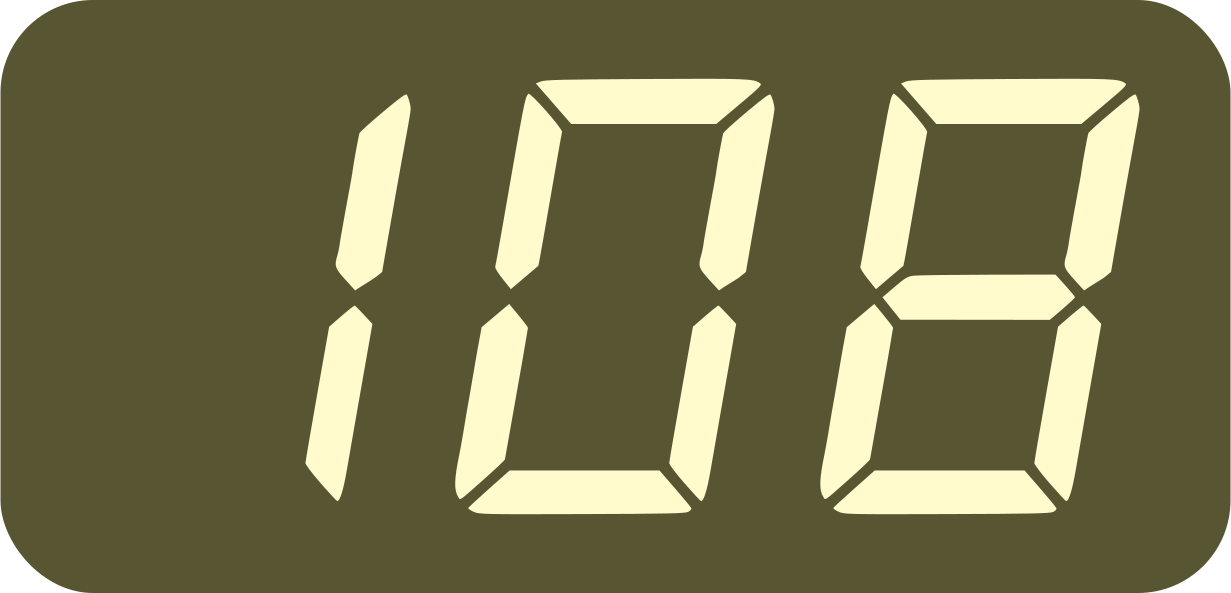 , and
pressing shows
, and
pressing shows 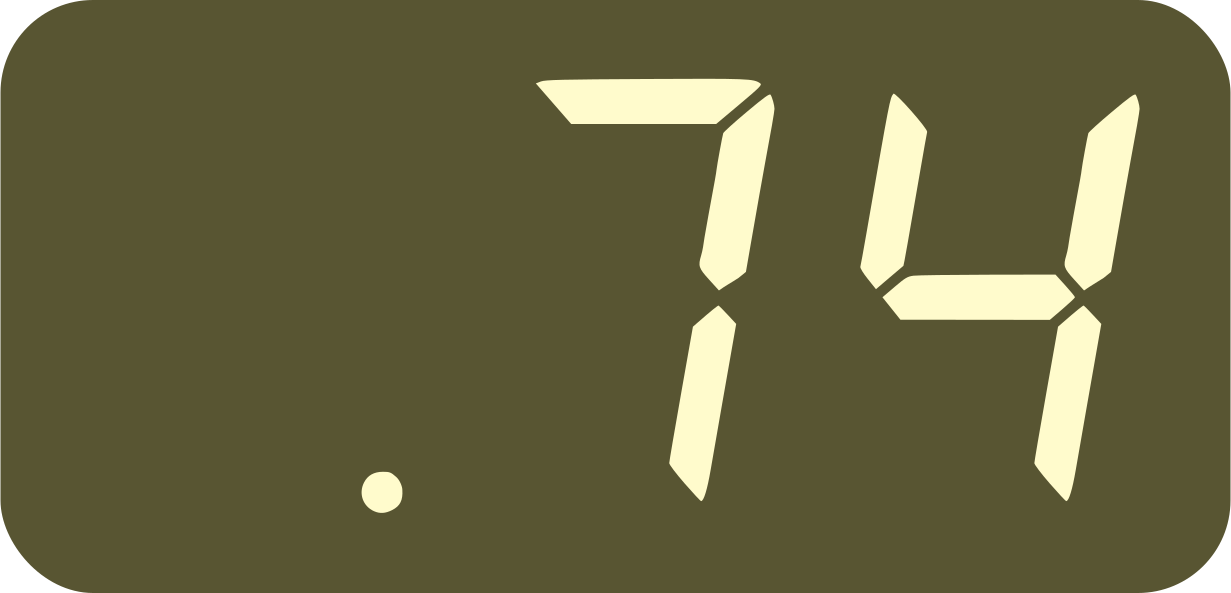 , that means the actual tempo is
108.74 bpm.
, that means the actual tempo is
108.74 bpm.
Note that:
You can instead hold down and turn
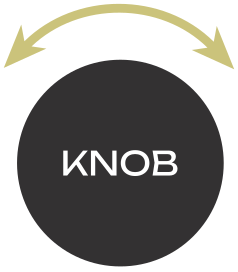 (while pressing) for a
quick adjustment
(while pressing) for a
quick adjustmentChanging to a new BPM integer number will
Reset the decimals when turning fast (for ex. 120.46 → 125.00)
Keep the decimals when turning slow (for ex. 120.46 → 121.46)
Count-in and count-off
Nome supports both a count-in, where the device counts down for you, and a count-off, where you count down by tapping and the device starts at the end of your count.
Count-in: count done by the Nome
Count-in is when you press the play button and the machine will count one bar for you until it starts.
To activate this, you can set the
→ 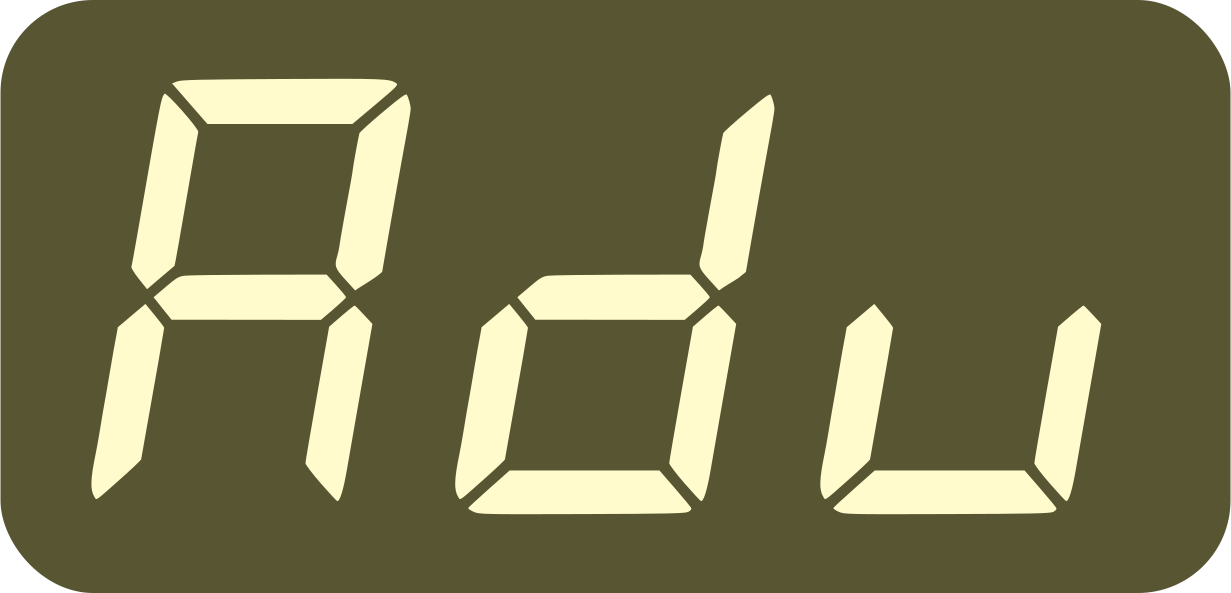 →
→
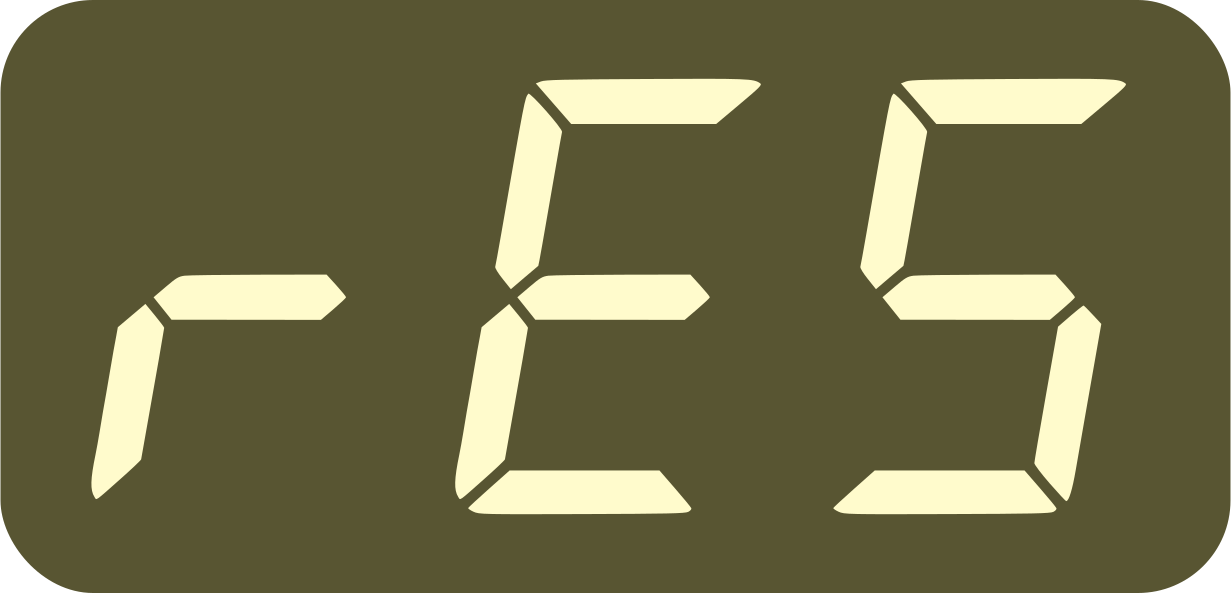 setting to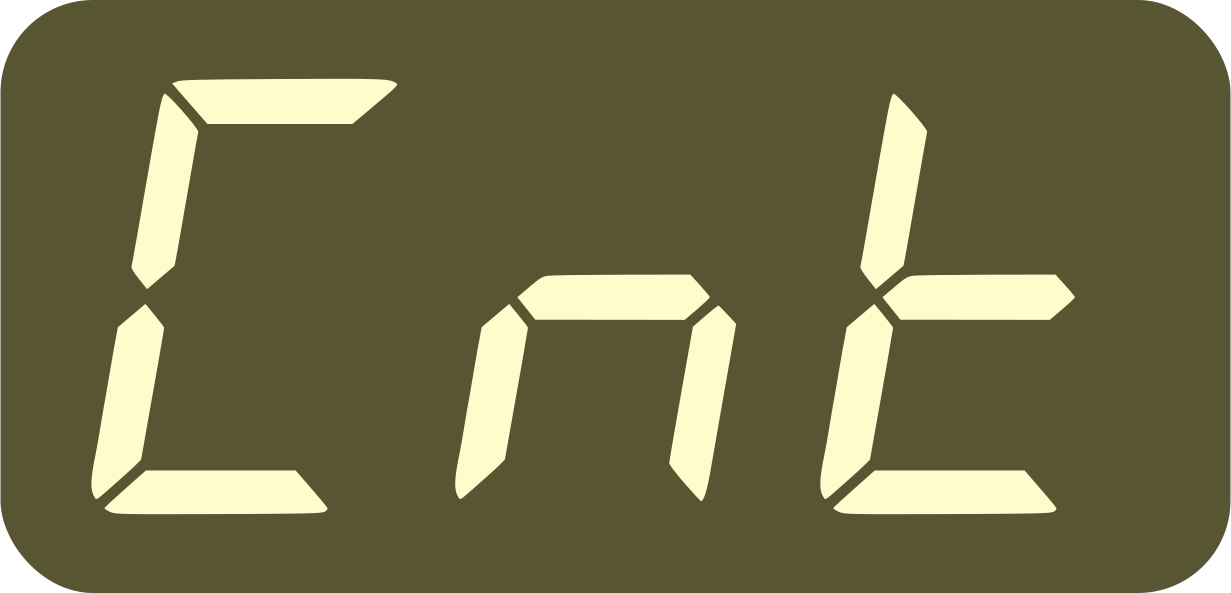
Then set the
→ → 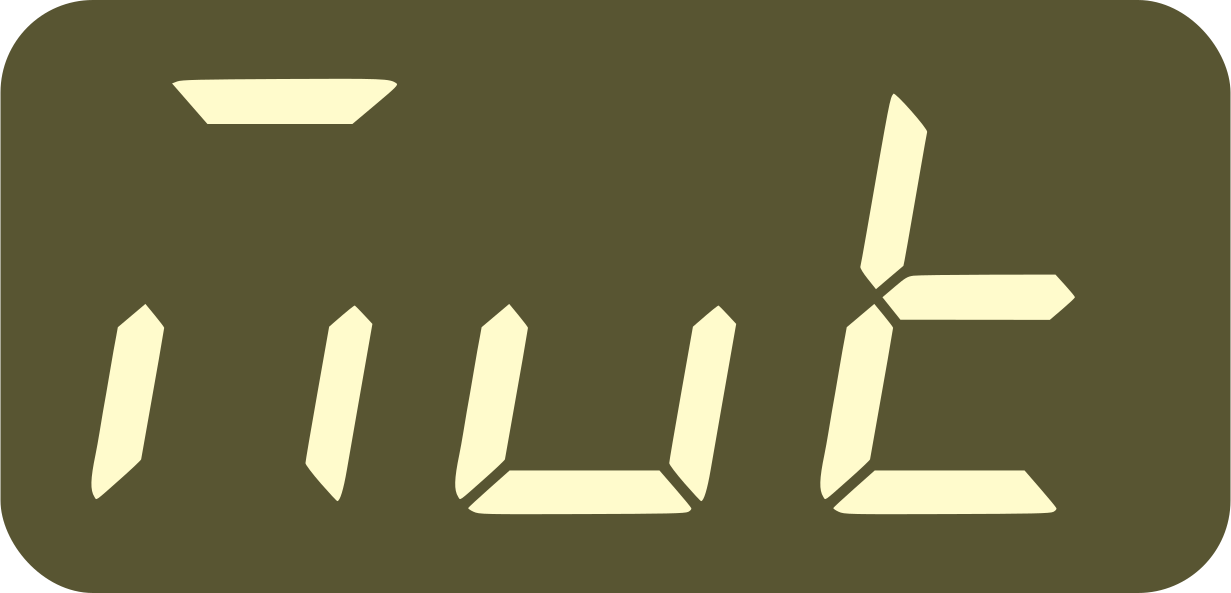 setting to
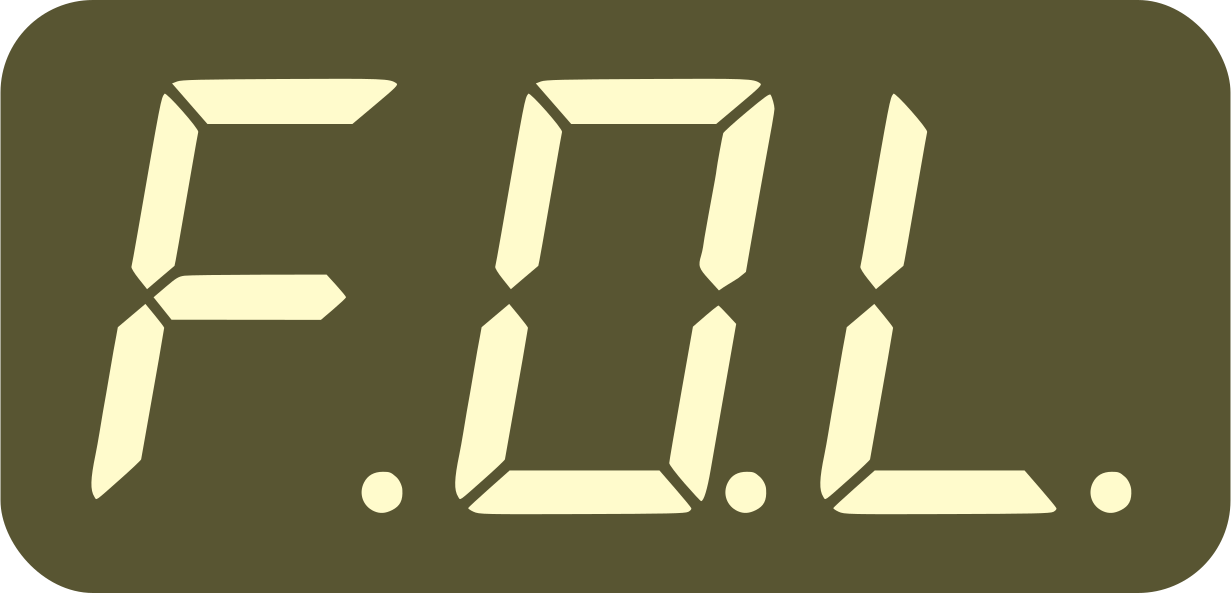 as well, so that the metronome is automatically unmuted
(both of these are advanced settings)
Then pressing the Play button will start the count-in right away, you will hear one bar of metronome and your machines will start on the next bar
Count-off: count done by the musician
Count-off is almost the same, except that you tap the bar of count-in yourself. This is a great way to set both the start point and the tempo, either at the beginning of a song or to catch a live tempo already running, as described in the section below.
To enable it, choose a value for the
→ settingThis setting determines when tapping will start a count or adjust the tempo
For example setting it to
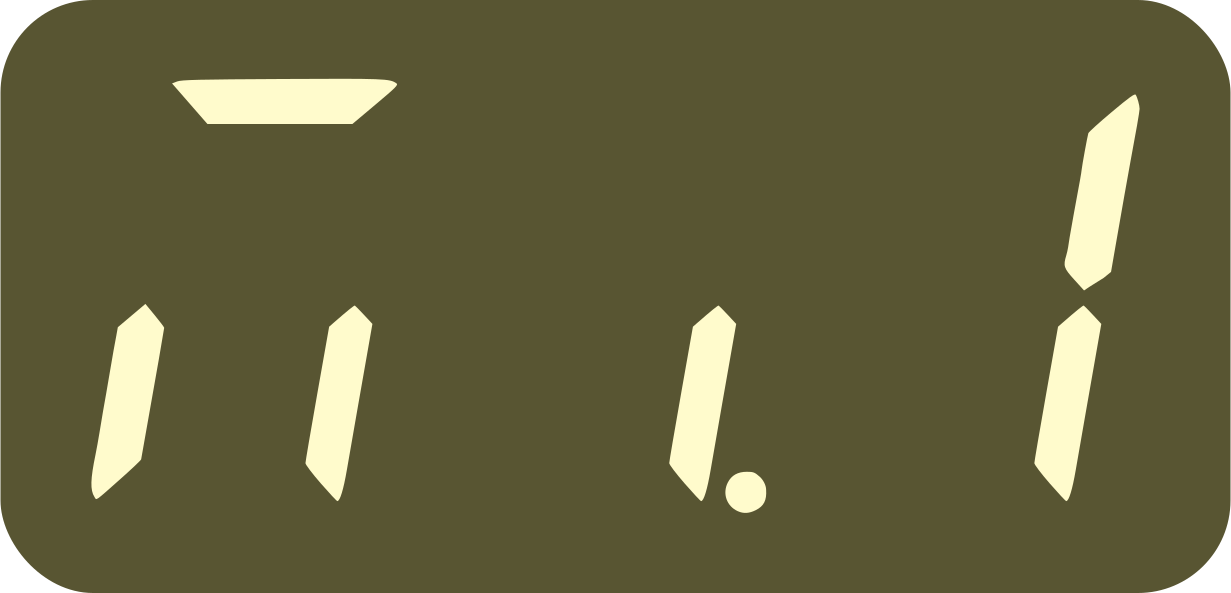 (MIDI Out 1) means:
tapping while the MIDI output 1 is stopped starts count-off
tapping while the output is playing will adjust the tempo
Then set the time signature, and tap exactly one bar, for example 1, 2, 3, 4
On the next bar, the machine takes over and starts everything
What MIDI/ANLG output is starts is what the
→
setting is set toWhen it is set to
, the metronome is unmuted and the
output that starts is the one indicated by the autoplay
setting
→ Note that the metronome is unmuted after the first beat, to avoid a “click flam” if a musician is slightly off-beat
After this, tapping will adjust the tempo, matching the music to the tapping
A double-tap on a pedal or a drum pad stops (and/or mutes)
It does the exact opposite of what was done after the count-off
Catch up live timing with Smart Tap Tempo
You can “catch” a live tempo already running, which is great if you are playing with live musicians without a metronome, or with a machine that cannot send a 1-24ppq signal to sync to.
Before trying to catch a tempo, it’s a great idea to set the start timing of the Nome right - you can do this by counting off.
Then, once started, simply tap, as the Smart Tap Tempo algorithm will set not only the tempo but also match the timing to your tapping. It might take a few beats to catch up, simply keep tapping until the music aligns.
Note that the  LED will show you how precise your taps are by
changing its color:
LED will show you how precise your taps are by
changing its color:
Perfect Green means your taps are in time with the Nome’s internal timing
Perfect Red means your taps are at least 50% off
Anywhere in between will give you a mix of the two colors (green -> yellow -> red)
The Nome will try to keep the tempo stable as much as possible, while at the same time be ready to change the tempo if your tapping changes. To achieve this, it detects if your taps are regular or not:
When they are, they will be heavily averaged, so just keep tapping, the more you tap the more stable it will be
When not, it will “reset” the average so that the tempo can quickly change and follow your tapping
Pro Tip: If you want to temporarily disable the averaging, hold down the Setup button while you are tapping, this will let you make much quicker tempo changes.
Note: on any beta firmware, there is an extra feature for you
to check what the algorithm is doing under the hood: will
light up red every time the Nome “resets” the average tapped
tempo. Feel free to use this so you know when it happens.
This feature is not present in “normal” (non-beta) firmwares.
Match external gear’s timing with Time Nudging
The smart tap tempo mentioned above is great with a source with a variable or unknown tempo, like Live musicians for example.
But if you are trying to sync to a machine with a precise BPM, for example a DJ turntable, it is better to:
Set the same BPM (down to the 100th decimal) on the Nome
Use Time Nudging to match the timing
To nudge the timing, hold down and either  or
or
 . The left button will nudge backwards, the right button will
nudge forward.
. The left button will nudge backwards, the right button will
nudge forward.
This will “move” the timing of the Nome without changing its tempo. The longer you hold the buttons (you can let go of the Setup button), the faster the nudge will be.
The two buttons and will change from green to
red to indicate how fast the nudge is going.
Turn off the Nome
To turn your Nome off, simply hold down for 2 seconds. The
display will then show “OFF in 3 2 1” and then turn off.
To turn it back on, press any of those buttons:  ,
or .
,
or .